|
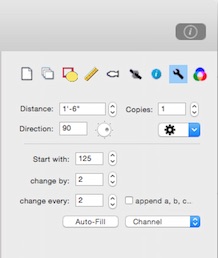
The tools tab allows you to complete operations that would otherwise require a menu command followed by a separate dialog window. These operations include move, duplicate, auto-fill and more.
Move and and duplicate operations are available from the popup menu in the upper section of the tab. The move function requires that you specify how far and in what direction to move the selected objects. The duplicate function makes a number of copies of the selected objects, spacing them at the given distance/direction. The distance and direction settings in this tab also determine the offset when you copy and paste objects.
New Object(s) is similar to duplicate except that a new object rather than a complete copy of the selected object is added. For lines and curves, the new line or curve is added from the end of the selected object, extending for the specified distance and direction.
Although they do not require additional information, there are also mirroring functions available in the move/duplicate popup. These make mirror copies of the selected objects with respect to axis of the plot's origin. The R & R function is similar but it mirrors symbols with respect to the center of a position line.
Create Dimension takes the selected lights and sorts them by position and number. It then creates a dimension line between the centers of every two symbols. The dimension line is offset away from the symbols by the distance/direction settings in the tab.
Create Connection inserts a group of lines indicating a connection between the selected lights. The lines are created at the distance/direction set in the tab.
The Auto-Fill button numbers info fields of selected light symbols. The order of the numbering is the order of selection. To be most accurate, it is advisable to shift-click each symbol in the desired order rather than using the selection marquee. Change by is the increment and change every is the interval. If both "change by" and "change every" are set to 2 and "start with" is 125, the first two selected lights will be assigned 125, the next two, 127, etc.
Note: auto-fill is only enabled when objects are selected.
|