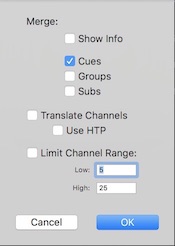
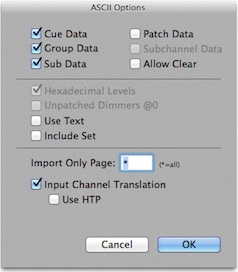
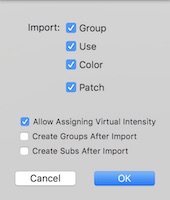
This command exports a tab delimited text (.txt) or XML file containing the fields found in the channel table.
File -> Export -> Upload to Box
This command allows you to upload the current file to your Box account. You'll be presented with a web authorization window which allows you to sign in to your Box account. When you have signed in and given LXConsole authorization to access your files, the current document will be uploaded. If a file of the same name exists in your main folder on Box, it will be overwritten. Uploads can take a varying amount of time depending on network speed. Uploads occur in the background so you can keep working. You will be notified if the upload succeeds or fails.
File -> Export -> Upload to Dropbox
This command allows you to upload the current file to your Dropbox account. You'll be switched to your browser where you can sign in to your Dropbox account. When you have signed in, you will be asked if its OK to create a new folder for LXSeries files. When you agree, the current file will be uploaded. Uploads can take a varying amount of time depending on network speed. Uploads occur in the background so you can keep working. You will be notified if the upload succeeds or fails.
File -> External -> MIDI and Show Control In
When this item is checked, LXConsole responds to input from the MIDI source set in the MIDI tab of the preferences. LXConsole will respond to a "note on" message by initiating a "go" in any open live window. The the MIDI channel and MIDI note that trigger a go are specified using MIDI preferences. LXConsole also responds to the basic MIDI Show Control commands, Go, Hold, Resume in any open live window. MIDI commands are configured in the MIDI tab of the Setup window.
File -> External -> MIDI/Show Control Out
When this item is checked, LXConsole sends a MIDI Show Control message when "Go" is clicked in any open live window. The MSC command is "Go Lighting" followed by the cue number.
With a MIDI out connection, changes in the level of submasters are sent as note on or control change messages depending on the corresponding triggers for "SUB-n" actions found in the MIDI table of the setup window. "
File -> External -> OSC In
When this item is checked, LXConsole responds to input from the OSC source set in the OSC tab of the preferences. OSC commands are configured in the OSC tab of the Setup window.
File -> External -> OSC Out
When this item is checked, LXConsole will send "/cmd.lxconsole/SUB-n" OSC messages when the level of a submaster is changed. "
File -> External -> Ethernet
When this item is checked, LXConsole attempts to establish an Art-Net and/or sACN network connection. It sends DMX using the settings in the DMX Out tab of the preferences.
File -> External -> Web Sharing
This command starts a HTTP sharing service that allows you to view LXConsole's windows in a web browser. This service uses an network port that is either set in the preferences' export tab or is chosen by the operating system kernel. When you first start this sharing service, an alert is displayed with its network address. You can enter this URL in a web browser. When you open this connection in a browser, initially you will see a page of links to the windows that are open and can be viewed over the web.
File -> External -> Prepare Ethernet for Shutdown
This command will transmit packets with all addresses at zero, bypassing even parked or hot-patched dimmers. Once this command has been used, it is necessary to turn off and back on ethernet to restore output.
File -> External -> Plug/Unplug Widget
When using an ENTTEC DMX-USB PRO with the D2XX driver, this command should be used before plugging in or unplugging the device. If the preference is set to use the D2XX driver, LXConsole will look for a device when it starts. If the device is plugged in later, it may be necessary to use this command to connect to it. If the widget is unplugged after it has been connected to LXConsole, the application will continue to try to connect to it. This can cause LXConsole to become unresponsive. Using this command prevents LXConsole from searching for an unplugged device.
File -> External -> Run Script on Live Update
When this item is checked, a script is executed every time the cue display is updated when in Live mode. The script file is selected in the Script tab of the preferences. The default script sends the cue's levels to LXBeams. |