|
Overview Tools Inspector Main Plot Window Menus
Preferences Help Index |
Preferences 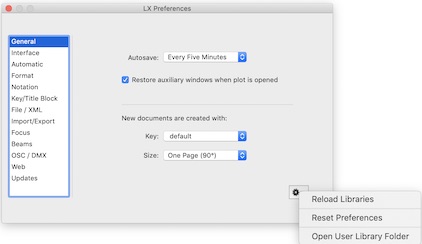
General Autosave is a system feature that helps preserve your work in the event the application quits unexpectedly. This setting determines how often unsaved documents are autosaved to disk. Restore auxiliary windows when plot is opened re-opens the report, section and model tabs/windows that were open the last time a plot was saved. New documents are created with the initial key shown. (Keys may be loaded into the document from the popup in the Inspector's symbols tab at any time.) If the specified key file is not found, the default key is used. New documents are created with the width and height of the drawing area set to that of either the default paper size or one of the preset drawing sizes. (The size may be changed later using the Inspector's Document tab.) If a preset size is selected, a new document may include an outline layer if Create outline layer is enabled in the Preferences' Key/Title block tab. When LXBeams starts up, the user and system library folders are scanned for files which are used to create the color, lamp and frame libraries. If you modify library files while LXBeams is running, the Reload Libraries command will read in the changes. Reset Preferences returns all the preferences to the default settings used when the application is first installed. The Open User Library Folder command opens the user library folder in the Finder. The user library folder stores custom keys, report templates, scripts and other library files. 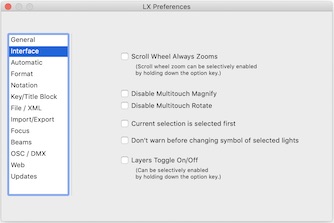
Interface Scroll Wheel Always Zooms sets the action of the scroll wheel (or two finger gesture on a trackpad) to zoom the plot window. Zooming can also be selectively enabled by holding down the option key. Disable Multitouch Magnify prevents pinch gestures from changing the zoom. Disable Multitouch Rotate prevents gestures from changing the rotation of selected objects. Current selection is selected first gives priority to already selected objects when clicking with the arrow tool. Don't warn before changing symbol of selected lights. skips the warning alert that is presented when a different key entry is selected. (The alert box asks if you want to replace the symbol.) Layers Toggle On/Off causes the on/off/dim combo box in the layers table to act like a check box and only switch on and off when the arrows are clicked. This setting can be reversed by holding down the option key. So if layers are set to toggle, holding down the option key will reveal the menu. Likewise if the combo box is normal, holding down the option key when clicking the combo box's arrows will cause it to toggle between on and off. Selection Handle Color sets the color of the small square markers that surround selected objects. Occasionally the background makes it hard to see which object is selected. Choosing a contrasting color can make that easier 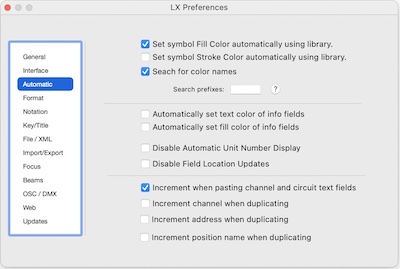
Automatic Symbols can have their Fill or Stroke color set automatically using the color library. LXBeams attempts to find colors in its library when they are entered in the inspector's info tab. If the color is not matched, a list of partial matches is presented. Disable automatic color search suspends this behavior. Info text fields always have a common font based on the type of data they display which helps distinguish their meaning. The Automatically set text color of info fields option does the same thing with the stroke color. The Automatically set fill color of info fields option makes the fill color consistent across all fields of the same property. Disable automatic unit number display stops LXBeams from displaying the unit number field when a unit is automatically numbered. Each position has its own options for how unit numbers are assigned. This option only prevents the display of unit numbers. To prevent a position from being automatically numbered, you must set its numbering option to "Don't Number". Disable field location updates prevents the locations of info text fields from being reset when the symbol they are attached to is changed. When copying and pasting channel and circuit text fields, the pasted fields can have their numbers incremented rather than duplicated. When lights are duplicated, their channels and/or addresses can be automatically incremented. When positions are duplicated, their names can be automatically incremented (up to 12/12th). 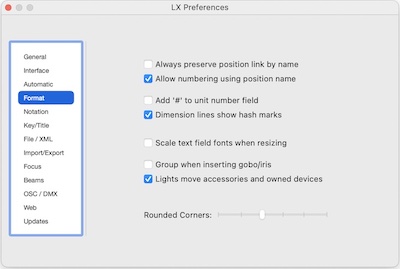
Format A light will detect its position when moved and if it does not find a position in its new location, it will reset its association to be blank. A light can also be associated with a position by name. If a light is associated only by name and it is moved, that association will be lost because of the above unless the Always preserve position link by name option is selected. The consequence of this option is also that a light moved off a position will keep its association with that position unless it is moved to a new position. A light that is only associated with a position by name can be released from that association by removing the name from its info. Automatic numbering can continue across position segments with the same name. LXBeams can add a pound sign, '#', when it auto-numbers or fills unit number fields. Dimension lines can be drawn with hash mark style ends. Text fields can proportionately change their font when they are resized. The Insert menu has commands for adding gobo and iris symbols on top of selected lights. These can either be grouped with the light or left as separate symbols. Lights are able to search for owned devices and nearby accessories and move them when the light is moved. (This does not apply to lights or associated symbols that are part of groups.) 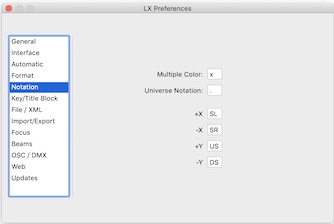
Notation Multiple color notation is used when computing sheets in color count reports. Universe Notation is used for expanding dimmer addresses from universe and address shorthand. For example, when using "." for the universe notation, address 2.1 expands to 513. This notation is also used for sub-channels. The first universe can be referred to as either 1-512 or as 1.1-1.512. The latter form would be used when there are multiple universes and consistent notation is preferred. Otherwise, it is assumed that an address without a preceding "u." number always belongs to the first universe. 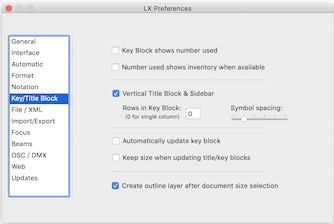
Key/Title Key blocks can show the number of lights of each fixture type that have been used in the plot. Key blocks can also include the number of lights in inventory along with the number used. A title block can be generated in either horizontal or vertical format. Rows in Key Block determines the number of rows in a generated key block. Entering 0 will cause the key to be a single column of symbols, which makes a vertical block. Entering a number greater than zero will add a new column after the designated number of rows have been filled. Spacing determines the vertical distance between symbols. Key and title blocks are simply generated groups of simple objects. When an existing title block has been resized, it is possible to keep that size when updating it with the Add/Update Title Block command. Title blocks change their text labels when the show information is changed in the Inspector's Document tab. Key Blocks can also be automatically updated every time a light is drawn to reflect the symbols currently in use. When a preset document size is selected from the popup in the Inspector's Document tab, a special "outline" layer can be automatically generated. An outline layer can also be added to any document using the "Add Outline Layer" command from the Document Size popup menu. The outline layer is the bottom layer and contains a border around the drawing area. Depending on the horizontal/vertical format preference (above) a line will be added in the outline layer that gives room for a the title and key blocks to the side or bottom of the drawing. In general, you should avoid using the special outline layer for other drawing. When the outline layer and border/sidebar line are present, the automatically generated key and title blocks will position themselves in the sidebar (or bottom) area. 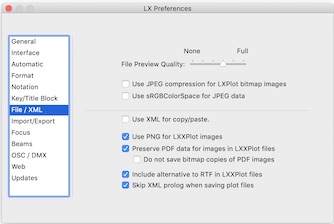
File / XML Both lxplot and lxxplot files support holding a preview image of the plot. This preview is used by the Finder's QuickLook feature and can also be used by other applications to display the plot. The size and quality of this preview can be set in a range from none to full size PDF. LXPlot files normally store imported bitmapped images in uncompressed high resolution format. To save file size, non-PDF imported graphics can be saved in compressed JPEG format. However, if your graphics contain transparent portions, these will be filled with a solid color if JPEG compression is used because the format does not support transparency. LXBeams can create JPEG bitmaps for storing images using a genericRGB color profile. The sRGB profile is a more compatible/standard format. The default is to use an internal binary representation when copying and pasting objects. Using an XML format allows you to copy and paste to an application that supports xml plot data such as LXFree for Java. XML (.lxxplot) plot files can store imported images in either JPEG or PNG format. JPEG has the advantage of smaller size. PNG is able to support transparency. An XML file can also store a PDF version of an imported image that was originally in PDF format. An application that reads the lxxplot file can then choose which version to use. Saving both versions may result in a higher quality image but makes the file size larger. Styled text fields and notes use rich text (RTF) which may not be available on all devices. You can optionally save a PDF or plain text copy of the contents of those items. This enables a device without RTF support to at least display the text without the formatting. Two lines of prolog are required at the top of a standard XML file (LXSeries plot files are in XML format). LXSeries software does not need the prolog information. Saving files without the prolog may prevent software such as Google Drive from mis-categorizing or displaying the raw XML of the file. 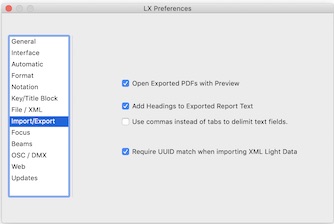
Import/Export When a PDF is exported it can be automatically opened in the Preview application. This can be useful because Preview can save the exported PDF in various formats such as JPG. When reports are exported as tab delimited text files, a row of column headings can be added. (This also works with copy and paste.) When importing and exporting text data, the default is to use tabs to separate the fields or columns. Another common format for representing table data (CSV) uses commas to separate the values. Light data can be extracted from an XML plot file and imported into matching lights in the current plot. Each light symbol has a unique ID that is used to exactly match imported data with a specific light. However, it is also possible to import data less strictly, matching lights by a combination of position name and number. 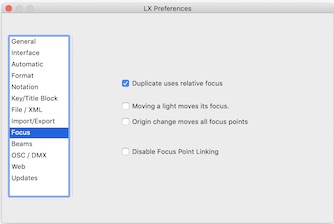
Focus Duplicating a light normally also copies all of its associated properties such as color, channel, etc. (except for the unit number). The focus point is also copied. If desired, this can be offset by the duplication distance rather than being the same as the original. A light's focus point is defined as a location in 3D space. The location a light is pointing at does not normally change if the light is moved to a new location. But, when the >Moving a light moves its focus> option is enabled, offsetting the x,y location of a light will move its focus point by an equal amount. When the origin of the document is changed, the focus points of lights can move with the new coordinate system. The effect of this setting is that the focus point displayed in the Inspector does not change from the old to new origin. But, this also means that the beam will shift in relation to its light. Focus Points are linked to symbols by the "use" field. Normally, when a focus point is moved, it updates the focus location of all linked symbols. Disable focus point linking suspends this behavior. 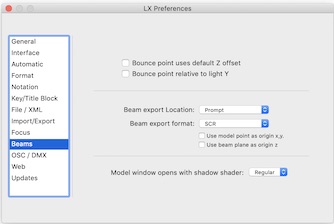
Beams A light's "bounce" focus point can be included in reports. The bounce point is a calculated point that is located on a plane relative to the light's position as set by the "Bounce Distance" in the Inspector's beams tab (6 feet or 2m below the position by default). Using the default Z (height) offset that is set in the key to calculate bounce points allows individual lights' Z offset to be used to as an alternate trim height for the position. Bounce points can also be displayed with the Y coordinate relative to the light rather than the plot's origin. The Export Beams command in the View->Beams menu creates an export file that is named and formatted based on the "Beams Export Format" setting. Files created with Export Beams can be created with a standard name and location. Or, you can choose to be prompted for where to save the file. The Use model point as origin x,y checkbox causes the model location to be used as the ( x, y ) origin of the model window and when exporting beams and .faces files. The Use beam plane as origin z checkbox causes the beam plane to be used as the height of the z origin of the model window and when exporting beams and .faces files. You can select the shadow level of the shader used by the model window. The shadow level determines how much of the light is blocked by an object casting a shadow. Dark shadows block all light. However, the other settings may look more realistic. 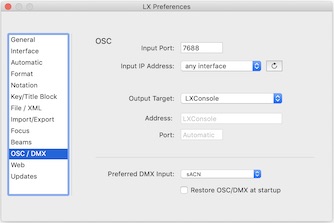
OSC DMX LXBeams can send and receive OSC messages. When LXBeams receives an "/lxchannels/" message, it expects a blob argument consisting of a series of one or more 12 byte fields. The first 4 bytes of each 12 is an integer channel. The second 4 bytes is an integer sub-channel and the final 4 bytes is a floating point level. When LXBeams receives a message addressed to "/lxchannels/", it will assume all channels are at zero unless a level is specified in the blob argument or the final channel is 0, indicating another message is coming with more channel information. When LXBeams receives an "/lxchannel/" message, it expects the message address to end in a channel and the message to have a single floating point argument in the range of 0.0-1.0. LXBeams responds to a message addressed to "/lxchannel/12" with and argument of 0.5 by setting the intensity of channel 12 to 50%. LXBeams can also send OSC messages when levels are changed. The target of these messages can be located by Bonjour or specified by IP address:port. When LXBeams is set to send OSC to "LXConsole", it sends messages with an address pattern starting with "/cmd.lxconsole/". The remainder of the OSC address specifies a command line telling LXConsole to set channel(s) at level(s). When LXBeams is set to send OSC to EOS Family Consoles, it will send messages with an address pattern "/eos/chan/". Other OSC targets receive "/lxchannel/" messages (see above) by default. However, you can specify to send messages with the address pattern /universe/dmx/address. These messages will have a single floating point argument 0.0-1.0 for the level of the dimmer address. DMX input via ethernet can use either or both Art-Net and ACN protocols. If using Art-Net, the computer's network connection and the address of the input device should belong to the same class A range and the subnet mask should be set to 255.0.0.0. sACN can be multicast or unicast. The Art-Net network preference helps LXBeams decide which network interface to use. OSC and DMX can be automatically restored when LXBeams is opened. 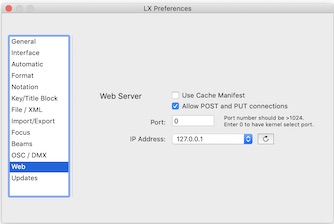
Web Server You can select the port number used by the network socket that is used by the Share on Network HTTP service. A value of 0 allows the kernel to select an open port number (which will change). A fixed port number can be useful if you want to connect through a firewall or just to have a consistent URL for network sharing. Ports generally should be assigned using numbers greater than 1024 to avoid conflicts. LXBeams allows connections from any open network service. However, the callback address used to for links in generated web pages must be specified. LXBeams checks with the operating system for available services when the preferences window is opened or the refresh button is clicked. The system can sometimes take time to respond and the controls will be unavailable while this is in progress. Use Cache Manifest is an option when using a browser that supports HTML 5 such as Safari. This instructs the browser to cache the pages shown in the network sharing index page for viewing offline. However, to view an update of a cached PDF or report html page, it is necessary to refresh the index page. Allow web pages to make changes enables editing open documents over a network sharing HTTP connection. 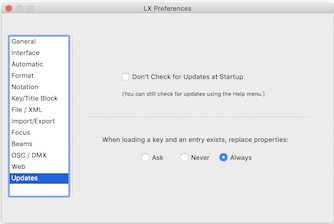
Updates When LXBeams starts up, it checks via internet to see if a newer version exists. Although a network connection is necessary for this check, no information is sent out by LXBeams. If an update is available, LXBeams displays an alert. Don't Check for Updates at Startup prevents this action. You can manually perform an update check using the Help menu at any time. When a key is loaded, one or more of the entries in the new key may already exist in the current key. In order to update these entries, it is possible to replace their properties. However, this will also overwrite custom settings such as inventory numbers. The default is for LXBeams to ask before replacing properties when loading a key. Additional Preferences LXBeams uses some advanced preferences settings that can be changed with commands in the Terminal. Most of these setting have to do with rendering or exporting files and do not need to be changed. The following is a list of commands and the default value: defaults write com.claudeheintzdesign.lxbeams key_block_spacing -float 12 defaults write com.claudeheintzdesign.lxbeams acad_dxf_version 1015 defaults write com.claudeheintzdesign.lxbeams acad_dxf_includes_attributes -bool YES defaults write com.claudeheintzdesign.lxbeams acad_dxf_show_attributes -bool YES defaults write com.claudeheintzdesign.lxbeams acad_dxf_use_doc_coords -bool YES defaults write com.claudeheintzdesign.lxbeams collada_use_phong -bool YES defaults write com.claudeheintzdesign.lxbeams collada_light_extras -bool YES defaults write com.claudeheintzdesign.lxbeams horizontal_beams_ignore_plane -bool YES defaults write com.claudeheintzdesign.lxbeams render_gel_transmission_factor -float 0.5 |
