|
Files in LXBeams on iPad LXXPlot files stored on your iPad or in iCloud are loaded using the Files button found in the upper left corner of the plan view tab of the LXBeams app. Tapping the Files button will show a list of available files. 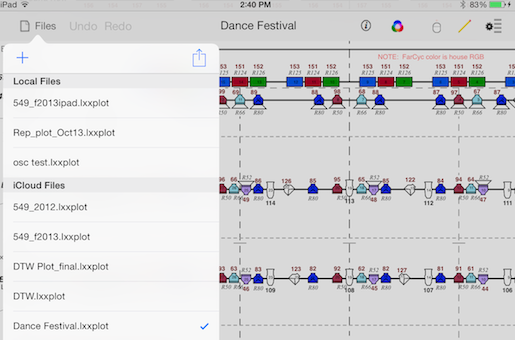
Create a new file by tapping the File Actions You can perform a number of actions with the current file by tapping the 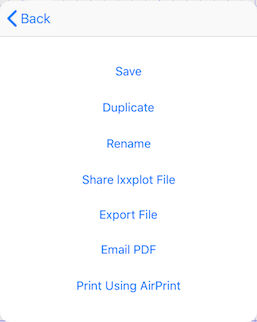
Tapping Duplicate saves the current file. Files that were opened from iCloud or the Files app may be saved locally, depending on if you've enabled "Open/Sync External Files" in Options->Preferences->Files. Tapping Duplicate saves a copy of the current file. Tapping Rename allows you to change the name of the file. Renaming does not change the file's location. Tapping Share lxxplot file will give you the option to e-mail or AirDrop the current file. You can also upload the file to a Box, Dropbox or Google Drive if those apps are installed. You can also choose to e-mail a PDF of the current file for someone to view. Or, you can print the drawing using AirPrint. Files App/iCloud Files stored in iCloud are accessible using the Files app or the "+" add file button int the files popup. When a file is opened into LXBeams2Go it is only saved in its original location if "Open/Sync External Files" is selected in Options->Preferences->Files. If open/sync is off, when the file is saved, a copy will be created in the device's local LXBeams2Go Documents folder. Documents stored locally can be accessed using iTunes or shared in various ways. LXXPlot Files from E-Mail, Box, or Dropbox You can load an .lxxplot file into LXBeams2Go that has been sent as an attachment to an e-mail or from the Box, or Dropbox apps. 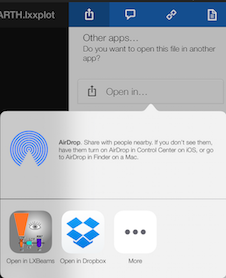
After you've edited a file on the iPad, LXBeams allows you to send it as an attachment to an e-mail or to upload it directly to your Box or Dropbox account.
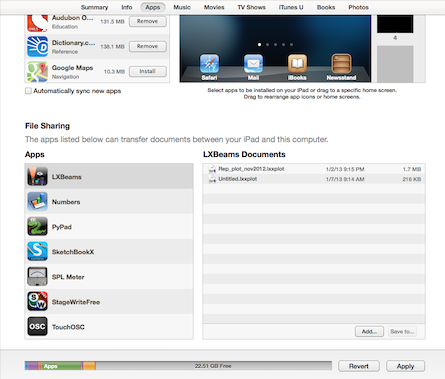
Loading Files with iTunes You can use iTunes running on a Mac or PC computer to load .lxxplot files onto your iPad.
Example Files Visit lx.claudeheintzdesign.com/examples.html to view a list of example files you can download. Unsupported/Alternate Content Font Differences Not all fonts used by a lxxplot file may be available on the iPad. This requires that substitute fonts be used to display the plot. The original font information is preserved when a file is saved. LXBeams will warn you when fonts are substituted and may not display the same as on a computer. LXBeams will also warn you when styled text elements are present in a file for the same reason. If you do not wish to see these warnings, you can disable them using the setting found in the Preferences.
|
 icon in the upper left corner of the files popover window. The new file will either be created on the iPad or in iCloud storage depending on if you've enabled "Use iCloud" in
  icon in the upper right corner of the files popover window.