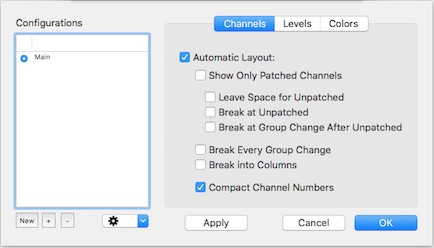
LXConsole View-> Display Options
The Display Options sheet allows you to set options for how the main display looks. These settings are grouped together into a display configuration. The Display Options sheet allows you to create and switch between multiple display configurations. For example, you might prefer the display to look one way during programming and another when the show is actually running.
Channel configurations are managed in the table on the left side of the sheet and with the "+", "-", and "new" buttons. The current display configuration is selected with the button in the first column of the configuration table. The "+" duplicates the current settings. The "-" button deletes the selected configuration. The "new" button adds a new default configuration.
Channel configurations can be imported from and exported to xml based .lxdconfig files. It is possible to export a manual display configuration and edit it in another application, re-arranging the locations of the channels. Then, import it back into LXConsole.
The settings for the current configuration (or the configuration selected in the table) are shown on the right side of the sheet:
The Channels display settings determine the layout and visibility of channels in the main display. There are a number of automatic ways to layout the channel display, including hiding unpatched channels. You can also separate channels into sections based on their "group" name (found in the channels table in the lower part of the main split view). When channel numbers are displayed in a single continuous arrangement, the display can be made easier to read by omitting the first digit from some of the three digit channel numbers (Compact Channels).
When Automatic layout is selected, the channel display lays itself out based on the size of the main window, adjusting as needed when the window size changes. In manual layout mode, the channel display is static and does not change in response to changes in the window or channel information.
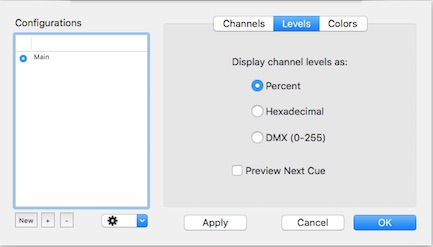
Levels can be displayed as percentages, hexadecimal numbers, of byte values. Percentages are 0-100%, with 100% displayed as FL. Hexadecimal levels are 00-ff. DMX values, 0-255, corresponde to the bytes sent in the DMX output.
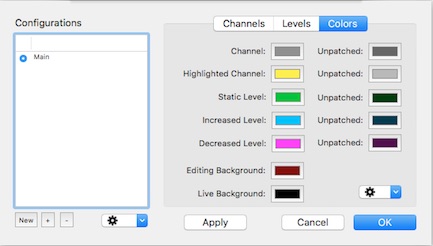
Colors used to display channels in the main display reflect information about the channel's status. Each display configuration can have its own set of colors. Default colors are set in the preferences or by using the popup menu in the colors tab.